Tunes & Vehicles
Add your vehicles to your Garage, and browse, share and use tunes from the Tune Archive.
Adding your vehicles
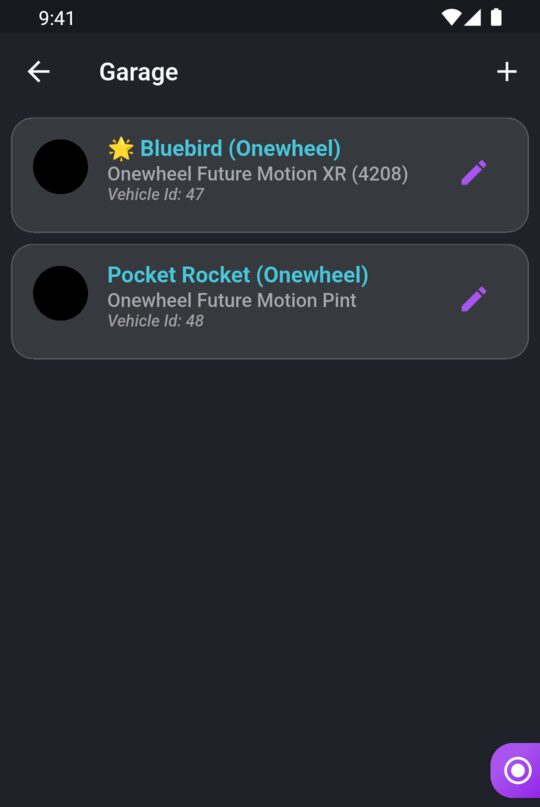
Your Garage holds the boards and wheels you ride. Each vehicle is a make and model from the Ride Hermes list, plus a name you choose, like "Trail Rig". When you add a vehicle to a ride, it shows on your ride, your trail attempts and the leaderboards.
In the app
- Open the side menu, expand Garage & Tuning and tap Garage.
- Tap the + at the top right.
- Give it a Name and pick the Vehicle from the list.
- Tap Create.
To change a vehicle, tap the edit icon on its card. You can then Edit it, Set as Favorite or Delete it.
On the website
- Log in, open the menu under your username and select Vehicles.
- Select Add Vehicle, choose the Vehicle and enter a Garage name.
- Select Add vehicle.
Each vehicle card has an Edit button. The edit page also has Delete.
Vehicles on your rides
- Favorite vehicle. Set a favorite in the app's Garage and it's picked for you every time you record.
- Changing a ride's vehicle. Edit the ride in the app or on the website. Your standings in vehicle-restricted seasons update to match.
- Vehicle classes. Every vehicle in the list belongs to a class. Some seasons only count certain classes, and leaderboards can be filtered by class. A ride only counts towards a season that requires a vehicle if it has a qualifying vehicle on it.
- Deleting a vehicle. Your rides stay, but they no longer show a vehicle. Add a different vehicle to them if you need them to count for a vehicle-restricted season.
Recording and editing rides are covered in Recording Rides, and seasons in Seasons, Leagues & The Underground.
The Tune Archive
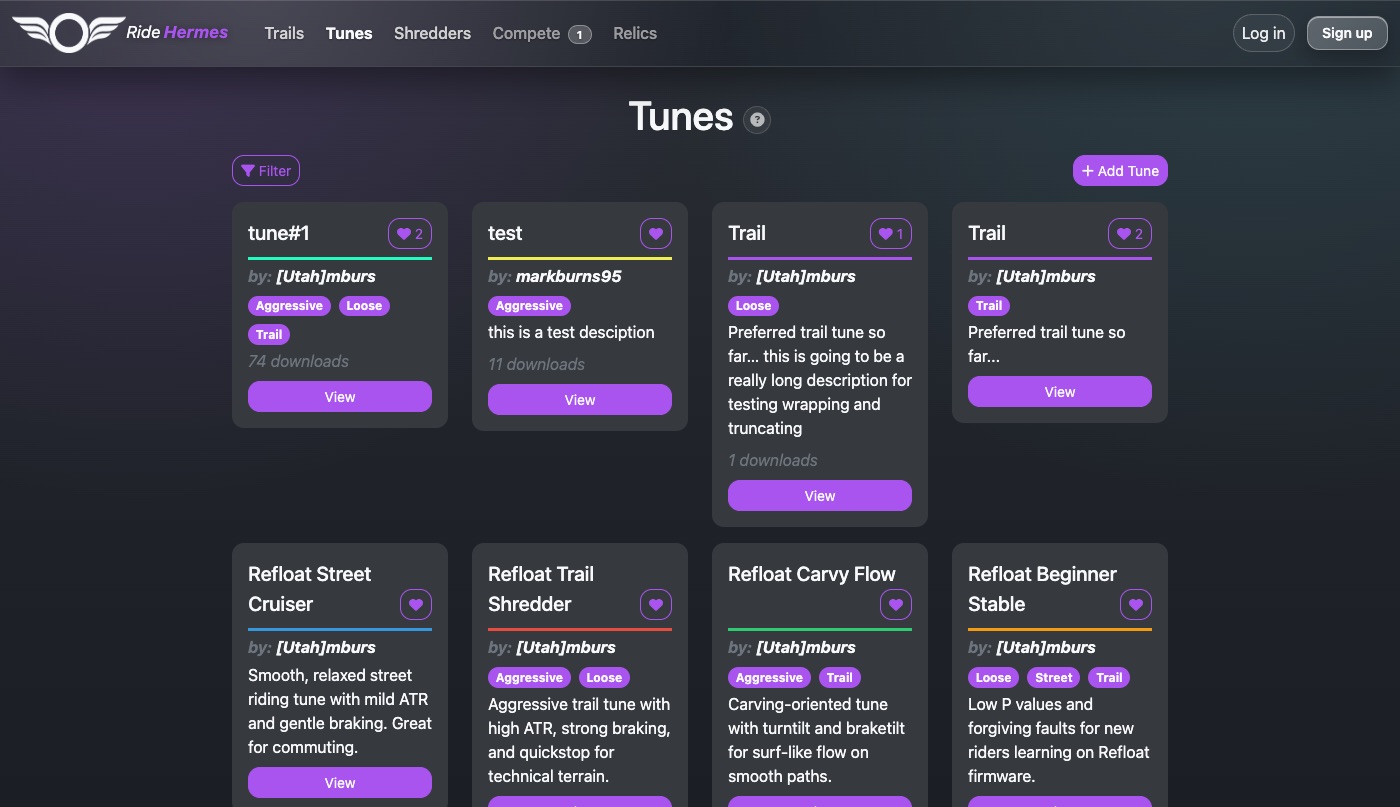
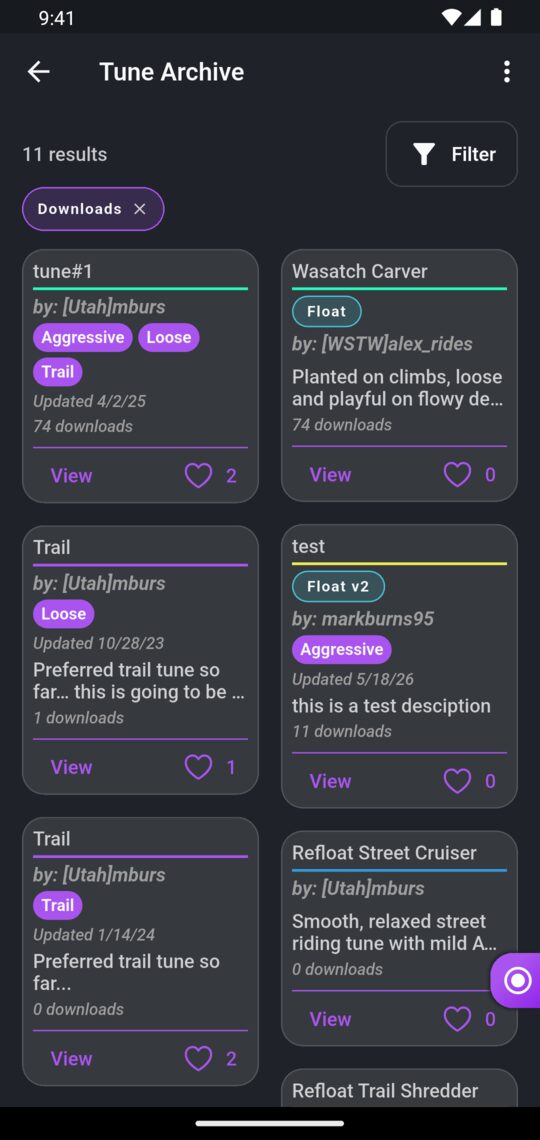
The Tune Archive is a library of board settings (tunes) shared by the community. A tune holds the settings for the Float or Refloat package that runs on VESC-based boards: balance, tiltback, startup, lights and more. Browse it to find a setup that suits your riding, or share your own.
- In the app: open the side menu, expand Garage & Tuning and tap Tune Archive.
- On the website: select Tunes in the top menu. You don't need an account to browse or download.
Finding a tune
Open the filters to narrow the list:
- Search — tune names, descriptions and the riders who made them.
- Categories — pick one or more to show only tunes tagged with them.
- Sort by — most Downloads or most Likes.
Downloading and sharing a tune
Open a tune to see every value it sets, grouped into sections. Tap the info icon next to a setting for an explanation of what it does.
Download it
- In the app, tap Download, then Download next to Download XML File. The file can be loaded into VESC Tool (mobile and desktop) and Float Control. Under Export, you can also send the tune straight to a partner app.
- On the website, select Download on the tune's page to save the XML file.
Like and share
Like a tune to show the creator some love. Likes help good tunes rise when riders sort by Likes. In the app, use the share button to send someone a link to the tune.
Sharing your own tune
You need to be logged in to add a tune.
- In the app, open the Tune Archive, tap the menu at the top right and choose Create a Tune. On the website, select Add Tune on the Tunes page.
- Optional: start from a file you already have. Choose your XML file and tap Import Tune (website: choose the XML File, then Import Tune). The values from the file fill in the form.
- Pick the package and version the tune is for: Refloat or Float, and the version you're running.
- Give the tune a name and description, and optionally pick categories and a color for its card.
- Check or adjust each value. Settings are split into groups, so step through each tab.
- Choose whether the tune is public or private, then save.
Package versions
Float and Refloat change their settings between versions, so each tune records the package version it was made for, so riders can tell which setup it was built on. Choose your version from the list. If yours isn't listed on the website, pick Other (type below)… and type it in. The tune still saves, but compatibility info won't show until we've added that version.
Public and private tunes
Tunes are public unless you make them private. A private tune is only visible to you. It's a good way to keep a work in progress to yourself.
- In the app, turn on the Private switch (Only visible to you) when you create or edit the tune.
- On the website, choose Private (only visible to you) under Visibility.
Your private tunes are marked with a lock and a Private label so you can tell them apart. Switch a tune back to public at any time to share it.
If one of your rides shows a private tune, other riders only see Private tune on that ride. They can't see the tune's name, open it, or link it to your other rides.
Editing or deleting a tune
Only the rider who created a tune can change it.
- In the app, open your tune, tap the menu at the top right and choose Edit. Make your changes and tap Save. To delete it, choose Delete from the menu on the edit screen.
- On the website, open your tune and select Edit. The edit page also has a Delete button.